Account Settings
Manage your profile, team, billing, notifications, connected apps and security in one place. Click Account in the left sidebar to open it. It has six pages:
- Profile: Tell your team members and clients who you are and how you like to work
- Team management: Edit your team members. See Setting Up Your Team
- Billing: Your subscription and invoices. See Billing Management
- Notifications: Which notifications you get, in the app, by email or as push messages
- Connected apps: Edit third-party services you've linked to Formta
- Security & Privacy: Update your password, turn on two-factor authentication, set up offline access on this device, see your active sessions, export your data and upload an offline backup
Press 1 to 6 to go to a page.
Profile
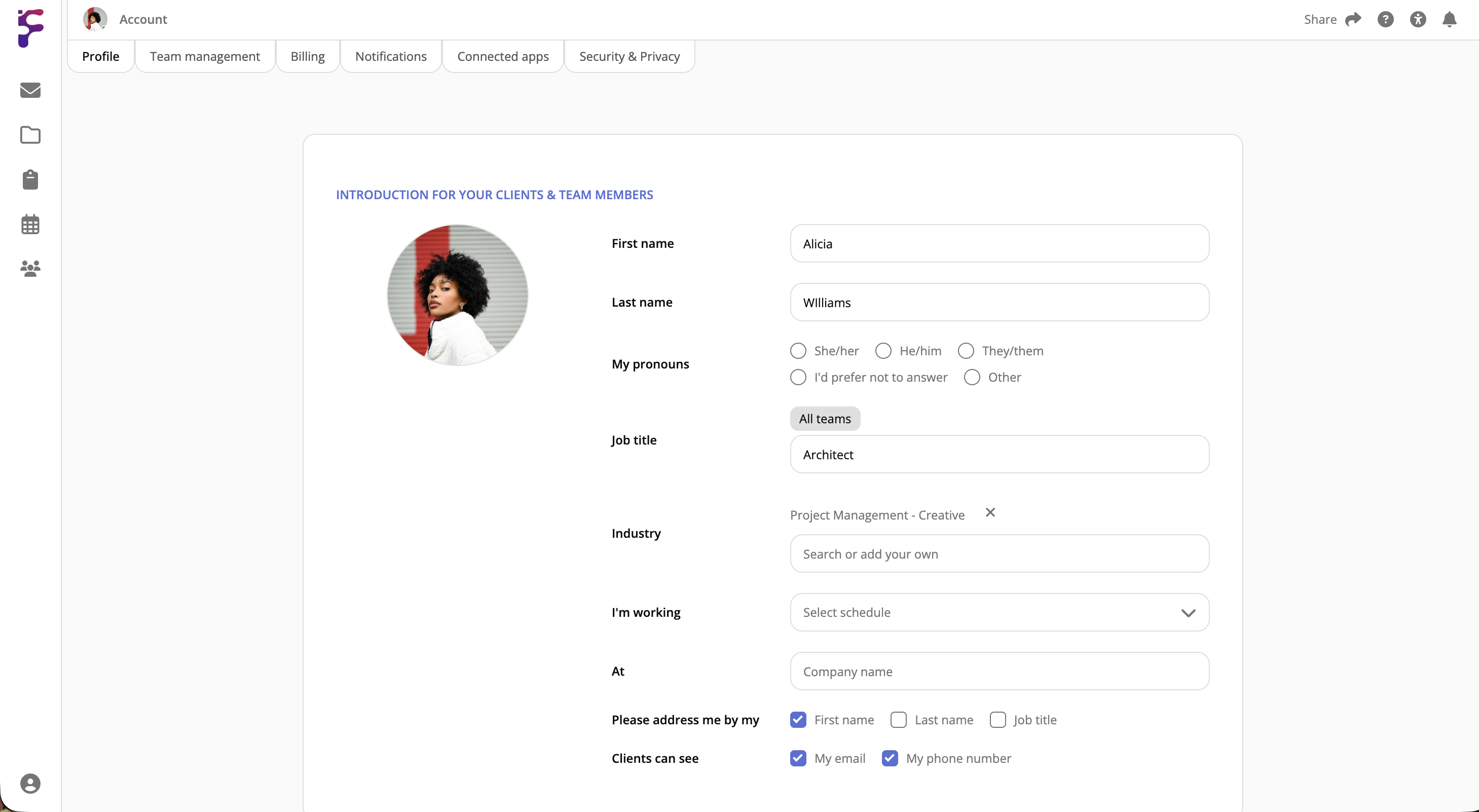
Profile Photo
To upload a profile photo, click your profile picture, select a photo and crop it. To change it, click your profile photo again.
Name And Pronouns
- First name and Last name
- My pronouns: Select one, or "I'd prefer not to answer"
Work Details
- Job title: Your job title in each of your teams
- Industry: The industries you work in
- I'm working: Whether you work full-time or part-time, so your team and clients know what to expect
Introduction
Write an introduction about yourself to your team members and clients: The first question in the Q&A. Say what you want your team members and clients to know, like your tasks or responsibilities in a project, so people know when to contact you and about what. You don't need to repeat your other Q&A answers, because Formta adds a short summary of them automatically.
Your Work Preferences
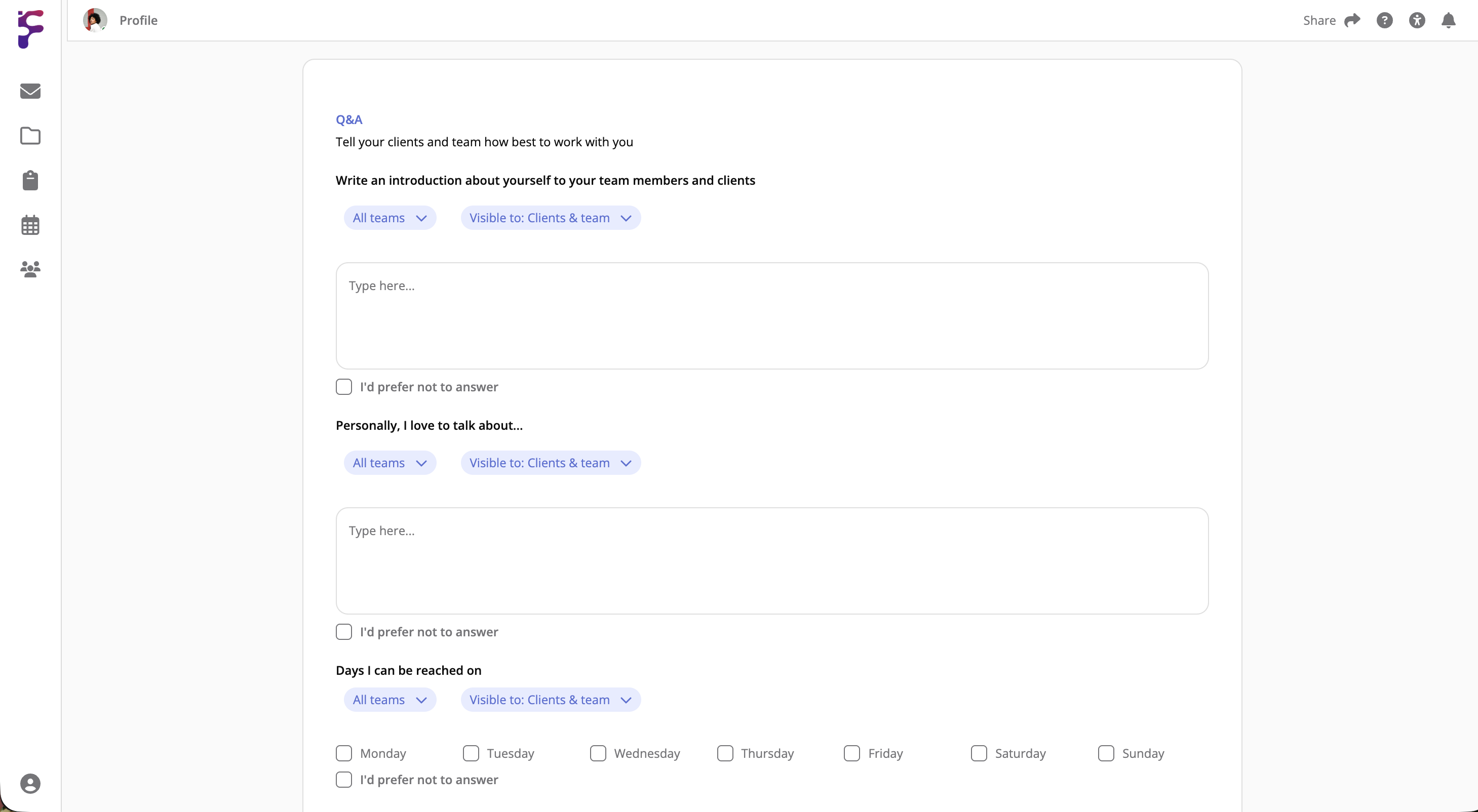
In the Q&A section on the Profile page you can add your work preferences. This helps your team and clients understand how best to work with you, and what you're comfortable with, so cultural differences or personal preferences don't get in the way. This includes:
- Personally, I love to talk about...
- Days I can be reached on
- On these days I'm available for meetings between
- Time zone: Helps your team and clients see your available hours in their own time
- My attitude to time is
- My preferred way of communicating
- My preferred meeting length
- I do my best work at
- My collaboration preference
- My preferred work environment
- My preference receiving feedback
- My preference regarding physical touch and greetings at work
Notifications
You can get notifications in three ways: in the app, by email and as push notifications. Under Clients, Projects & Tasks and Teams, turn each kind of notification on or off.
- In-app: Announcements, new features, tips and the weekly digest
- Email: Marketing & Announcements and the Weekly Digest
- Push: Client updates, new comments and inbox messages, on the device you're using
Under Mute by project, you can mute a busy project without changing anything else. See Notifications for what each category covers.
Security & Privacy
Password
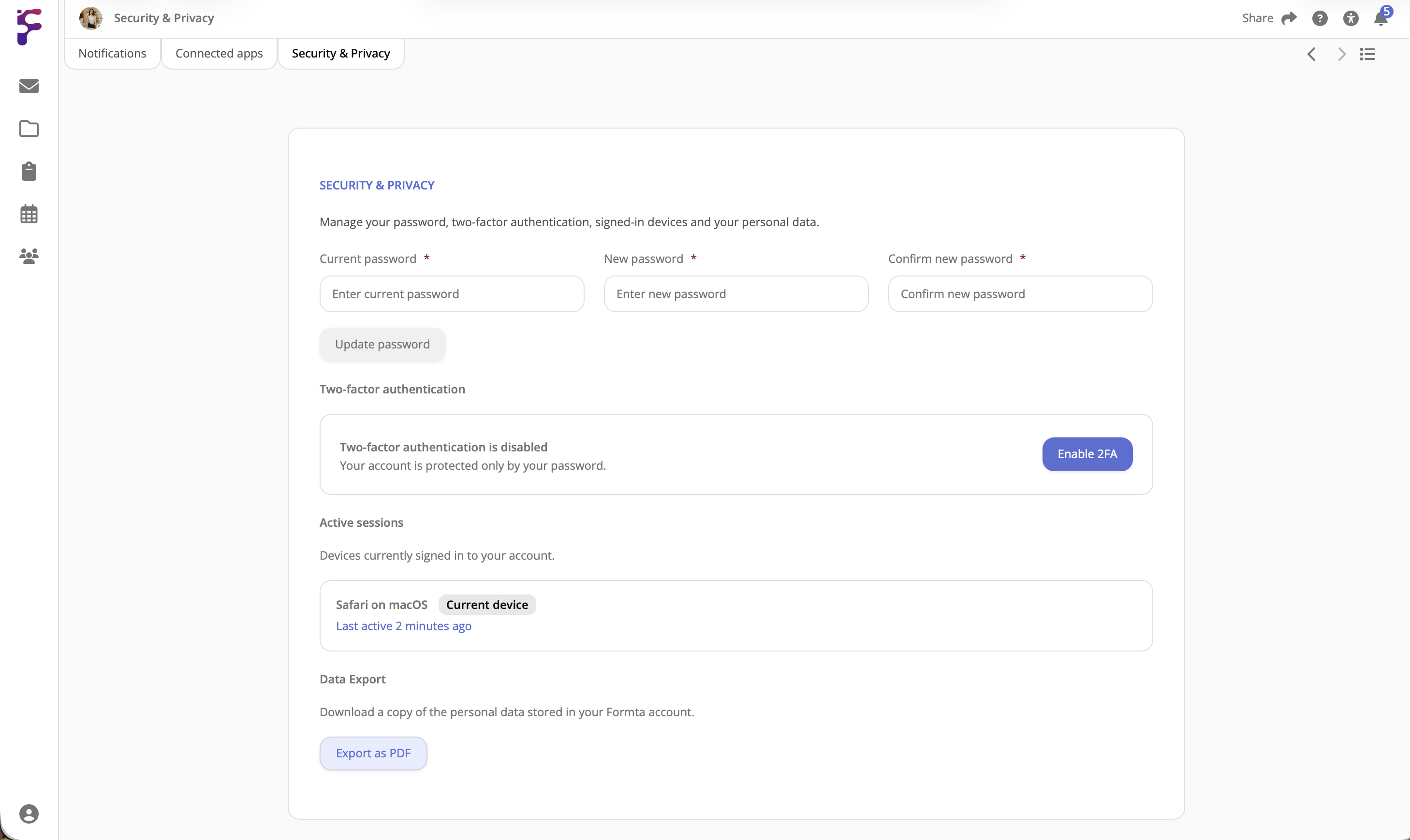
Change your password here. While you type a new one, hints show if it isn't strong enough yet. For an extra layer of security, turn on two-factor authentication too.
Two-Factor Authentication
The section tells you whether two-factor authentication is currently enabled or disabled. To turn it on:
- Click Enable 2FA
- Scan the QR code with an authenticator app, or type in the Manual entry key, and click Next: Verify Code
- Enter the Verification Code from your app and click Enable 2FA
- Save your recovery codes somewhere safe and click I've saved them
Once it's on, you'll need both your password and a code from your app to sign in.
Offline Access
Click Set Up Offline Access to work on your projects on this device without a connection. Unlocking it needs a passkey: a security key, your password manager, or this device's PIN or fingerprint. See Working Offline.
Active Sessions
Current device shows where you're signed in right now. If you see a device you don't recognise, click Sign out next to it, or Sign out all other devices. Then change your password and turn on two-factor authentication if you haven't already.
Data Export
Under Data Export, click Export as PDF to download your personal data. This is required to comply with GDPR, CCPA/CPRA and other privacy laws.
Offline Backup
If you downloaded a backup while you were offline, click Upload Backup and select the file to add its changes back. Formta will show how many changes and files it'll add, and ask before it does. See Working Offline.
Connected Apps
The services you've connected to Formta. Right now, you can connect Google Calendar. See Importing Your Calendar.