Billing Management
Manage your subscription, storage space and payments on the Billing page under Account. Your card details are kept in the billing portal, not in Formta, which adds an extra layer of protection, and your receipts are emailed to you after every payment.
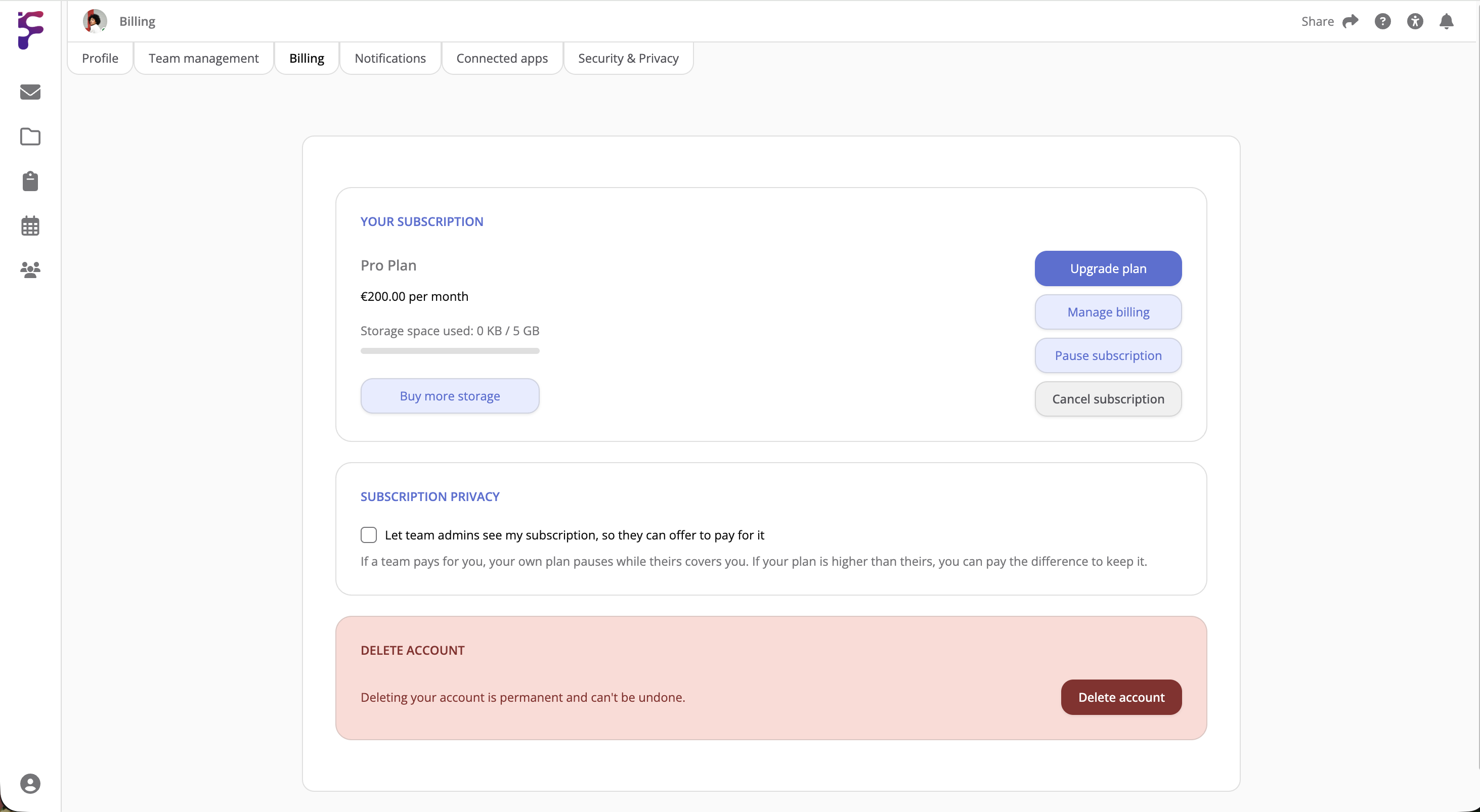
Your Subscription
This shows your current plan, how much of your storage space you've used and how much you have left.
From here you can:
- Upgrade plan: Get more users, features or storage space
- Buy more storage: Add storage space without changing plan
- Manage billing: Opens the billing portal for card details and payment history
- Pause subscription: Pause your subscription for a fixed period
- Resume subscription: Start your subscription again after a pause if you want it resumed before the fixed date
- Cancel subscription: Stop your subscription at the end of the current period
If you've already scheduled a cancellation, Don't cancel calls it off and keeps you on your current plan. If you've scheduled a pause that hasn't started yet, Don't pause calls it off.
While A Team Pays For You
If a team pays for your plan, Your Subscription shows the plan the team pays for, the team's name and the date their payment ends, for example "Pro, paid by My Team until 23 November". Under it, you'll see your own plan and its price, which carries on after that, and the date of your next payment. The Team Payment section further down the page says which plan the team pays for and until when.
While the team pays for you, Upgrade plan, Buy more storage, Pause subscription and Cancel subscription are hidden. Manage billing stays, so you can still update your card and download invoices. If you don't have a paid plan of your own, you'll only see the plan the team pays for and the date their payment ends. If your own subscription ends while the team pays for you, you keep the team's plan until their payment ends, and then you're on the Free plan.
If you've clicked Keep Your PRO Plan and paid the difference, you'll come back to the Billing page, which shows Payment received, updating... for a moment while your payment is confirmed. After that, Your Subscription shows your own Pro plan, what you pay each month until the team's payment ends, and your full price from your next payment date.
If you leave the team, or the team removes you, you keep the plan they paid for until the end of the period they've already paid for, and your own plan stays paused until then. Your Subscription still shows the team's plan, for example "Pro, paid by My Team until 23 November", with your own plan and the date of your next payment under it.
To have your own plan back sooner, click Resume Studio now or Resume Pro now in the Team Payment section. The team's payment for you ends right away, your own plan starts again that day, and your next payment comes forward by the time the team had left. This can't be undone.
Upgrading
- Click Upgrade plan
- Select your new plan
- For Studio and Pro, enter how many Additional team members you want
- Optionally add more storage space
- Click Upgrade to Studio or Upgrade to Pro. If you're staying on your plan, click Update Plan
- If you already have a subscription, check what changes and click Confirm upgrade, and it's charged to the card you already use. If you don't, the checkout opens so you can add your card details, and VAT is added there
VAT is added to your payment based on your location. Your payment shows as PADDLE.NET* FORMTA LTD on your card or bank statement. That's correct for a payment to Formta. A PayPal payment made in the checkout always shows as PAYPAL *PADDLE.NET.
Upgrading During Your Trial
You're charged on the day you pay, even while your free trial is still running. What happens to the trial depends on the plan you select:
- Studio or Pro: Your trial ends when you pay, and you'll have the plan you paid for from that day
- Personal: You'll keep your Pro trial until it ends, and you'll have Personal after that. Your billing page shows Personal, with a note saying when your trial ends, and Upgrade plan reads Change plan
Formta tells you which one applies before you pay.
Pausing
Click Pause subscription and select how long to pause for: 1, 3 or 6 months. The pause starts at the end of your current payment period, and your subscription starts again by itself when it's over.
While it's paused, your projects and files are kept just as they are, but you can't open them, and if you pay for a team, its projects close for everyone on it. Nobody is removed from the team and nothing is deleted. Resume subscription brings everything back immediately if you want it back sooner.
If A Payment Fails
If a payment doesn't go through, your subscription shows Past due, and your projects close the same way as when it's paused until the payment goes through. If you pay for a team, its projects close for everyone on it. Nothing is deleted and nobody is removed.
You get an email to let you know, and the payment is tried again. To pay, click Manage billing and update your payment method. Everything opens again as soon as the payment goes through. If it still can't be paid, your subscription is cancelled.
Cancelling
To cancel your subscription:
- Click Cancel subscription
- Select your main reason for cancelling
- Click Continue with Cancellation
Your access to Formta continues until the end of your current paid period. After that, your account moves to the Free plan and you can't open your projects anymore, but nothing is deleted. Select a plan any time to continue where you left off. If nobody uses or pays for the account for two years, you get an email before it's deleted.
Cards, Invoices And Receipts
Manage billing opens the billing portal, where you can:
- Update card details
- Change your default payment method
- See past charges and download PDF invoices
- Update your billing address and company details
Formta doesn't keep a copy of your invoices or card details. They're kept with the payment provider, which also handles VAT based on your country and VAT number.
Refunds
Refunds follow the payment provider's refund policy. If you can get your money back depends on where you live, and whether you pay as a private person or as a business.
If you pay as a private person, you can cancel and get a refund within:
| Where you live | Time to ask for a refund |
|---|---|
| EU, EEA, Switzerland and the UK | 14 days |
| Turkey and Israel | 14 days |
| South Korea, Brazil, China and Canada | 7 days |
| Singapore | 5 days |
The time starts on the day you pay. In the EU, EEA, Switzerland and the UK this covers your first subscription payment, not the ones after it. In the UK, a yearly subscription also gets 14 days after each renewal.
If you pay as a business, or live anywhere else, payments can't be refunded. The payment provider may still decide to refund a payment within 14 days, but it isn't guaranteed.
How To Ask For A Refund
- In the EU: Click Manage billing to open the billing portal, or use the Manage subscription link in your payment confirmation email, and use the withdrawal button within the 14 days
- Anywhere else: Go to paddle.net, look up your payment and select Request refund, or use the link in your receipt email
Refunds go back to the card or account you paid with. Card refunds usually take 3 to 5 working days to show on your statement, and PayPal refunds about 48 hours.
Paying For Someone Else's Subscription
If you're a team admin, you can offer to pay for a freelancer's plan while they work with you. See Adding and Paying for a Freelancer.
Subscription Privacy
If you're a freelancer and want teams to have the option of paying for you, select Let team admins see my subscription, so they can offer to pay for it. Without it, they can't see your plan or offer to pay for you.
While a team pays for you, you don't pay for your own plan. Your next payment date moves back by the time they pay for, and you're charged for any extra storage you've bought each month.
If you have a Pro plan, but a team offers to pay for a Studio plan, you'll get the option to click Keep Your PRO Plan in the Team Payment section and pay the difference to keep your Pro features.
Deleting Your Account
The Billing page is also where you can delete your account. This is permanent and your data can't be recovered. Click Delete account, type DELETE my account and click Delete. If you haven't signed in recently, you'll be asked for your password first. If you're the only admin on a team, make someone else an admin before you can delete your account.