Calendar Overview
See every event, task and meeting across your projects in one place, and plan your days, weeks and year in the view that suits you. The Calendar page is in the left sidebar.
Your Calendar Tabs
Each tab at the top of the page shows one or more calendars, so you can keep, say, your own calendar on one tab and a project's on another.
- Add a calendar: Click + next to the tabs. A new calendar called New Calendar opens in its own tab, ready to rename
- Rename a tab: Right-click it. On a touch screen, press and hold it
- Move a tab: Drag it
- Delete a calendar: Hover its tab and click the X, and confirm. A deleted calendar can't be brought back, and you can't delete your last one
- Go to a tab: Click it, press its number, like 1 for the first tab, or press ⌘ / Ctrl + Shift + → or ←
A calendar you've shared with clients has a people icon on its tab. Click it to see the calendar the way your clients see it, on the project's client revisions page.
The Toolbar
The toolbar at the top of the page works on the calendar in the open tab. From left to right, it has:
- +: Connect or sync Google Calendar, manage your calendars, and in the Content Calendar view, manage its lists
- The colour square: Change the calendar's colour
- The download icon: Export the calendar as an ICS file
- View: Switch to another view
Personal, Team And Project Calendars
When you create a calendar, select who it's for:
- Personal: Just for you
- Team: Everyone on a team
- Project: Everyone on a project
Team and project calendars are on the Studio and Pro plans. Any calendar can also be shared with clients, to show them the dates they need to know.
Managing Your Calendars
Hover + at the top left of the Calendar page and select Manage calendars. Your calendars are listed by team, with your own under Personal. For each one, you can:
- Show it on the tab you're on: Click its name to show or hide it. A tab can show more than one calendar
- Change its colour: Hover the colour square and select a colour
- Share it: Click the share icon
- Delete it
To create a calendar, click Create New Calendar, enter its Name, select its Colour and Type, and for a team or project calendar, the team or project. Then click Create.
Sharing A Calendar
On Studio and Pro, you can share a calendar with other people, so they see its events, tasks and meetings too. A team's admins can share the team's calendars, and you can share your own.
Click the share icon next to a calendar, and add people under Add person. People with access lists everyone who can see it. When you share your personal calendar with someone on your team and you're not an admin, a team admin approves it first, and until then the person shows Waiting for an admin to approve. The admin approves or declines it in Manage calendars.
Views
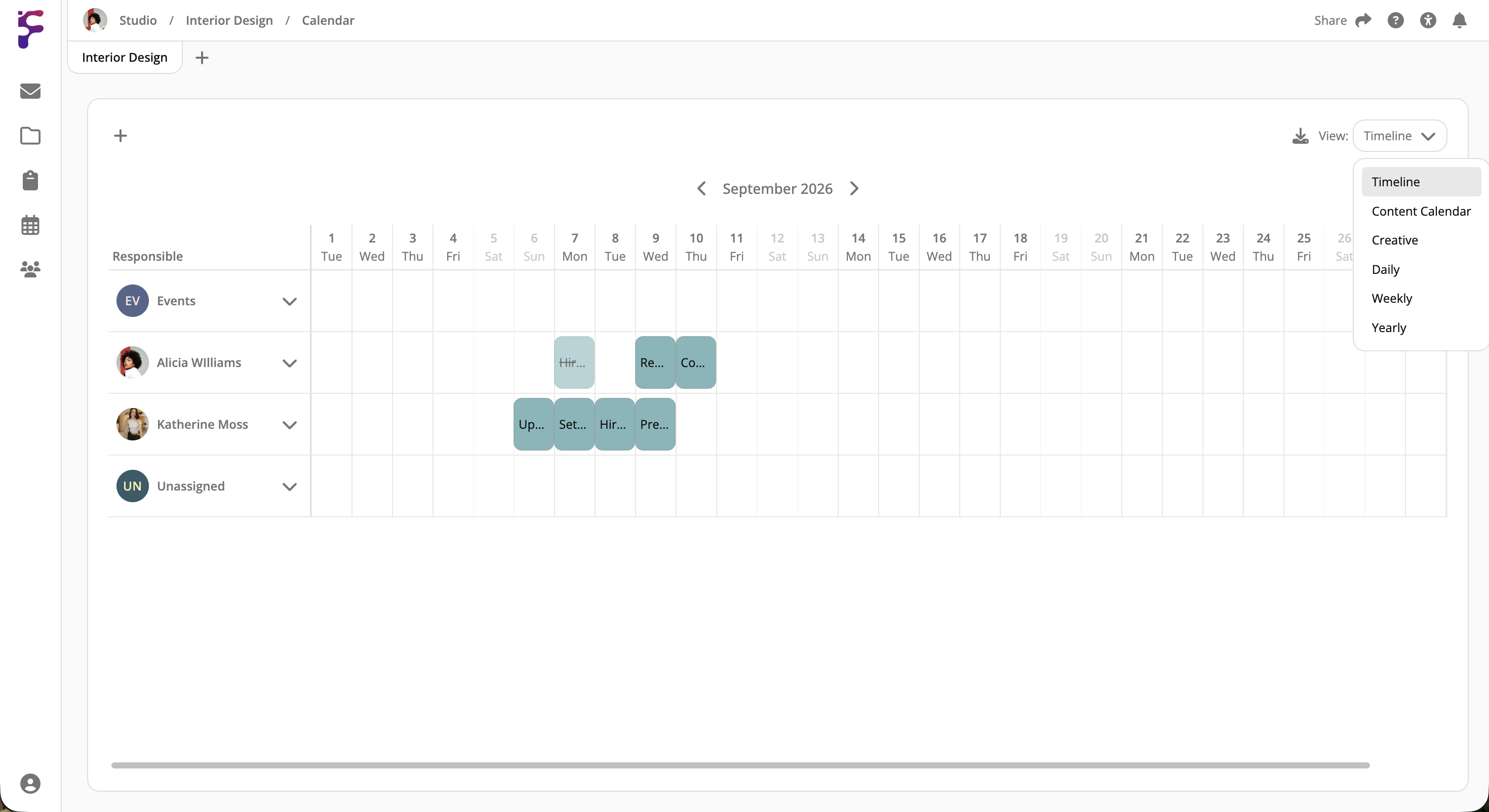
Select a view in View at the top right, or press its key:
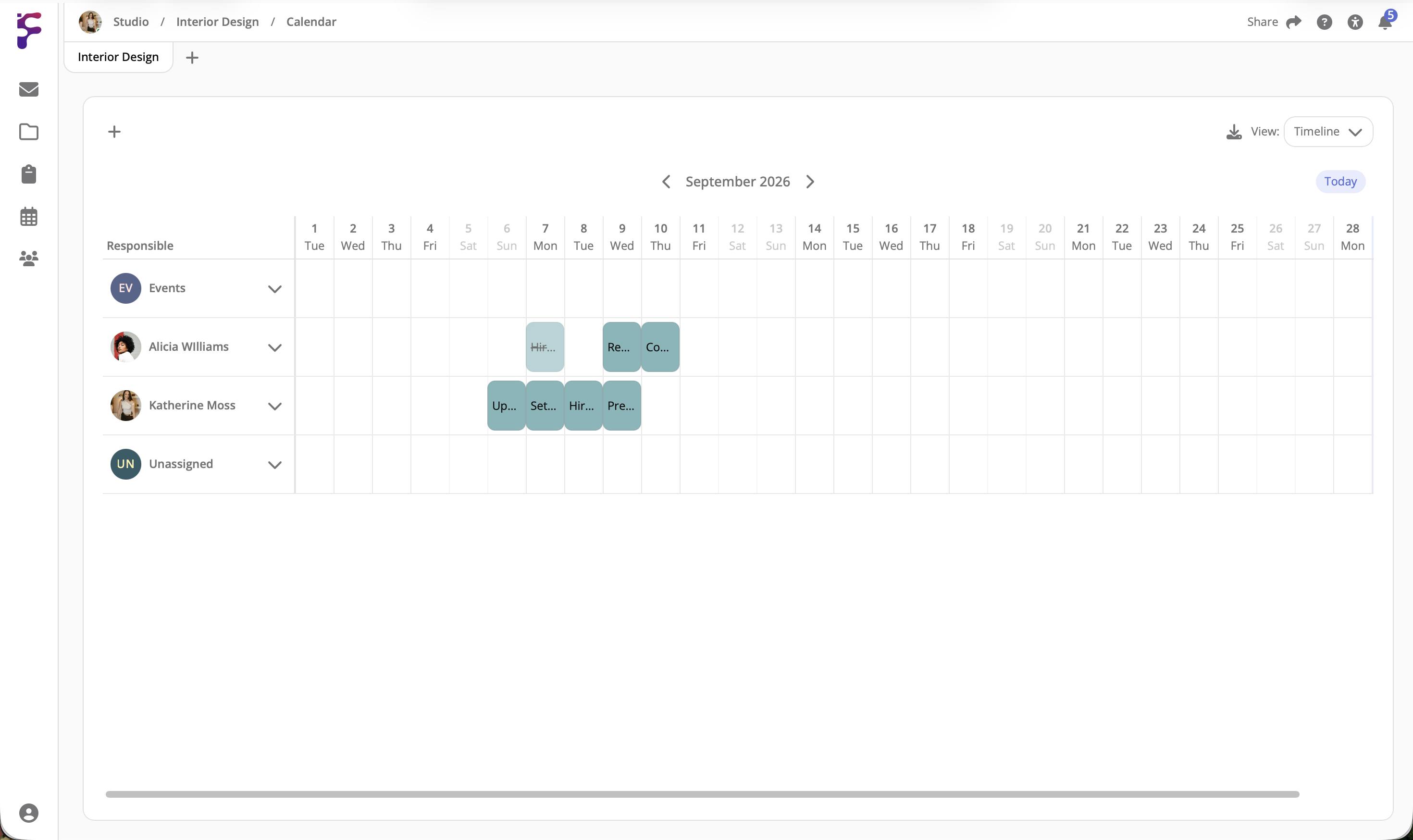
- Timeline (T): Every event, task and meeting on a timeline, with a row for each person, like the Timeline element
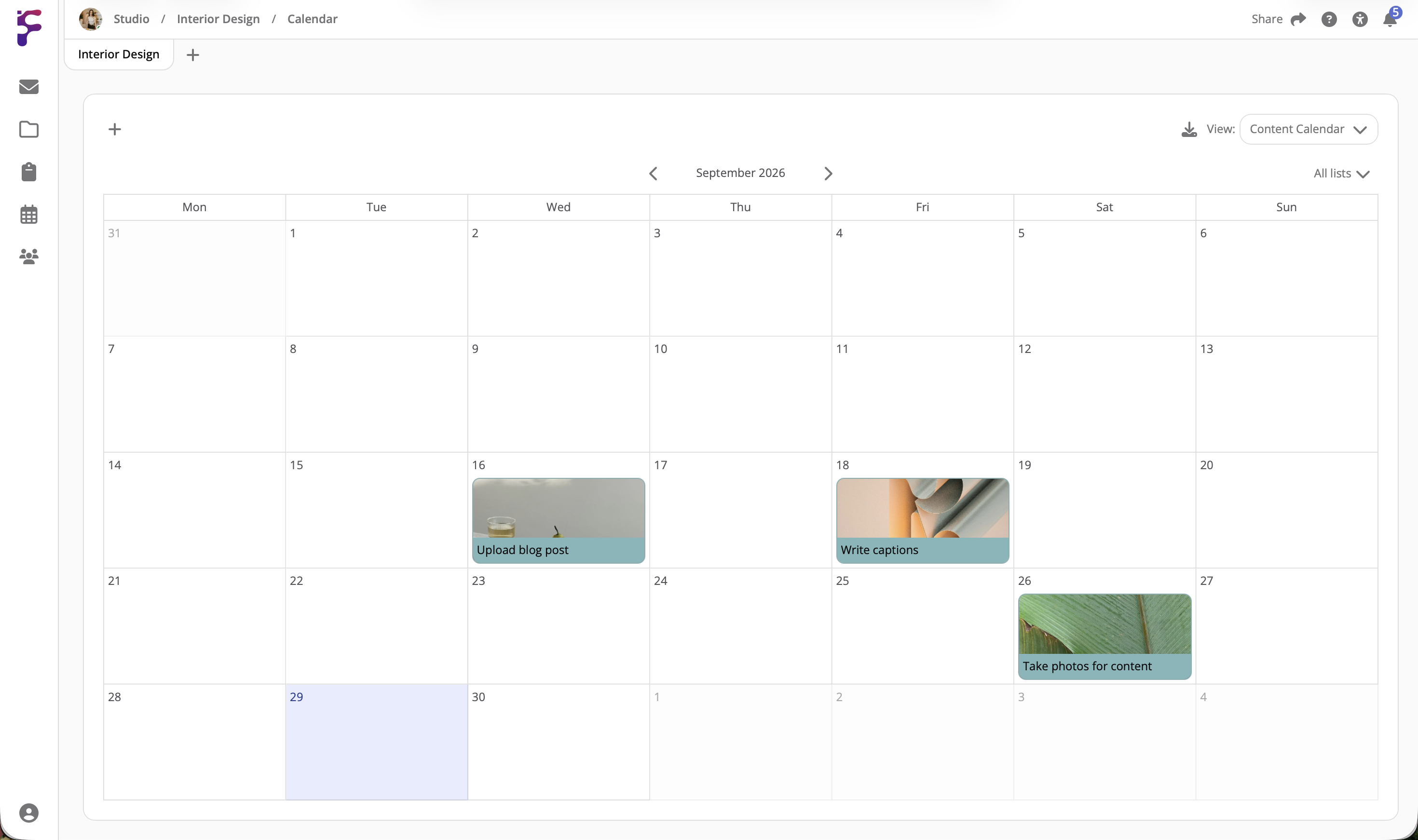
- Content Calendar (C): For planning content, with tasks grouped in lists, like the Content Calendar element
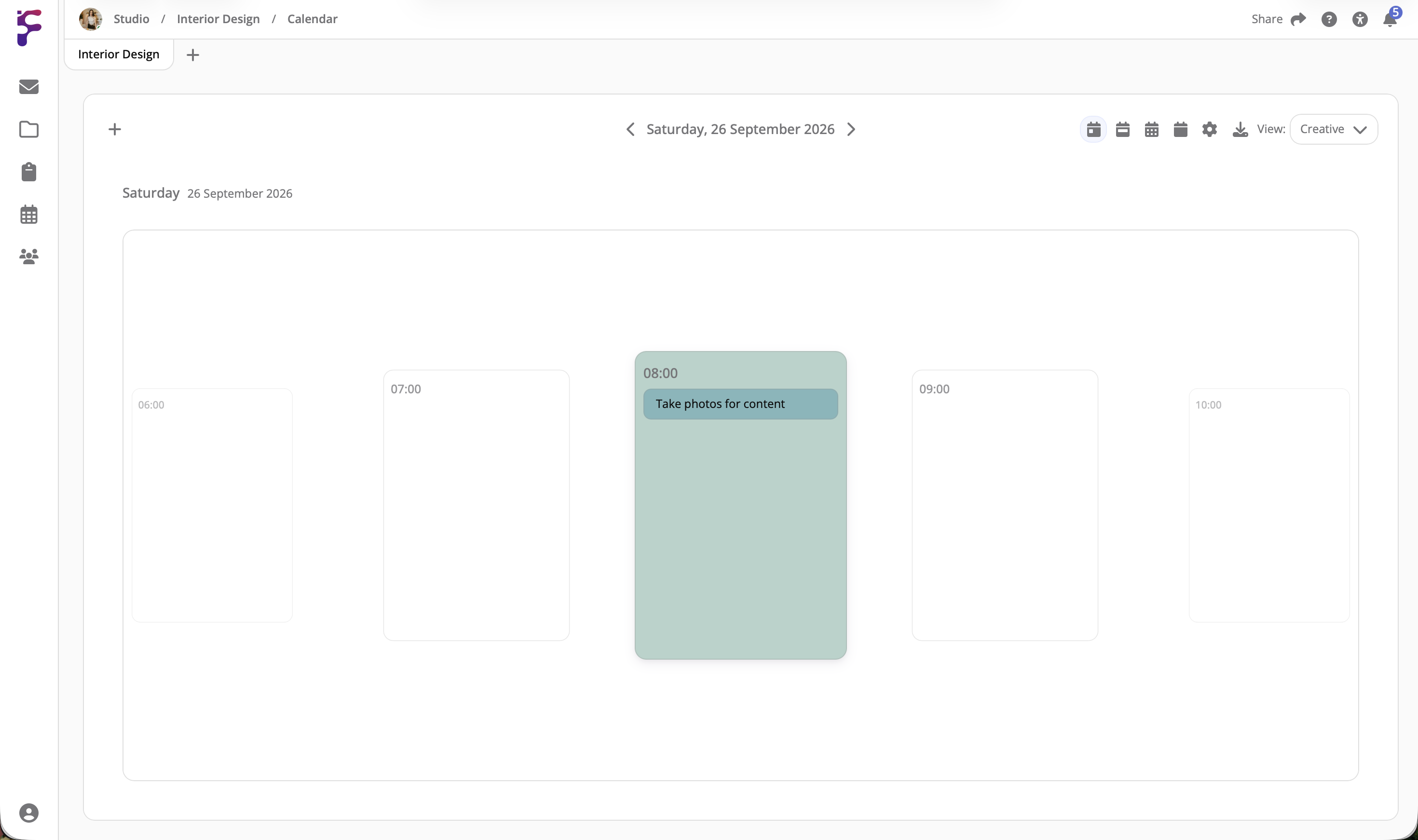
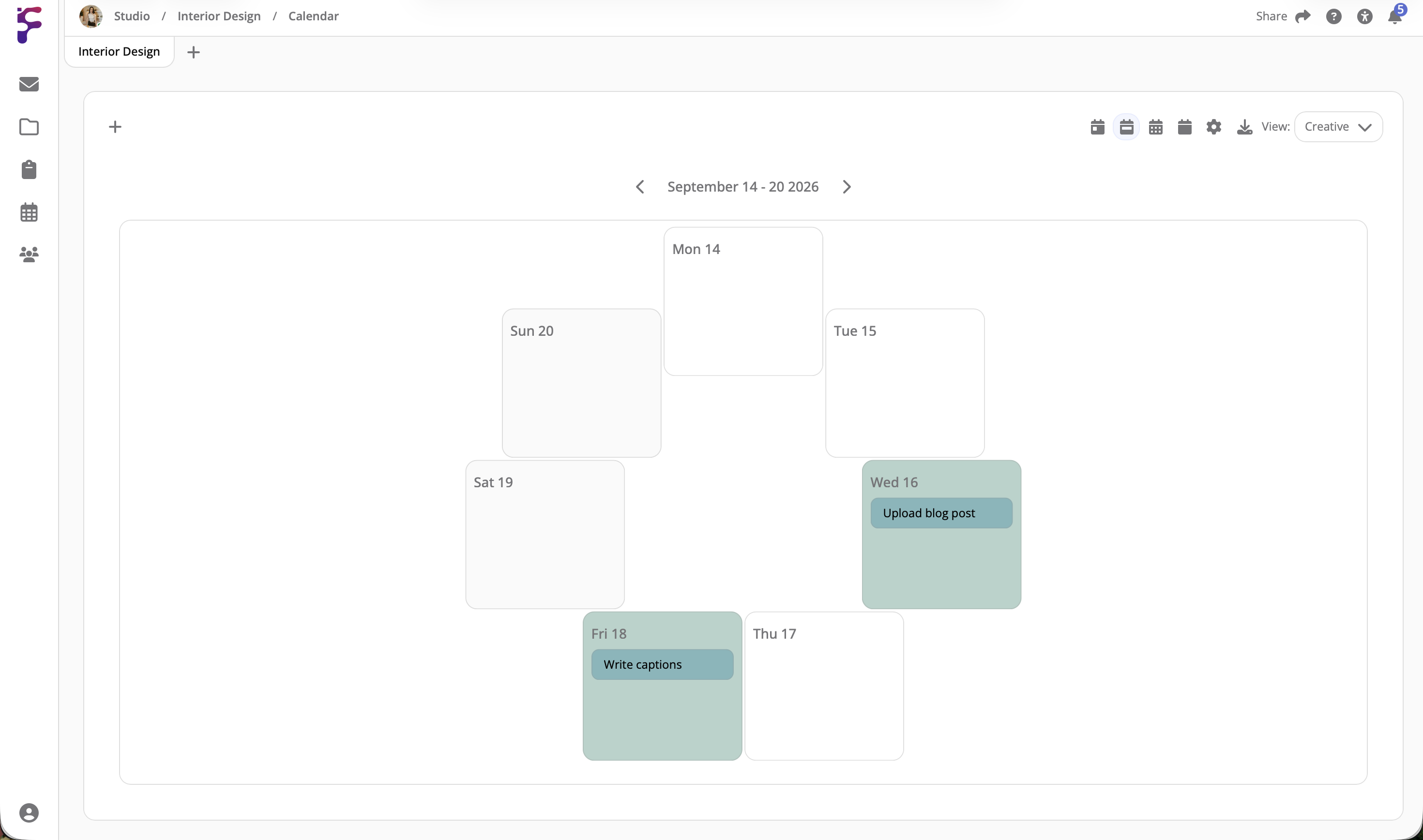
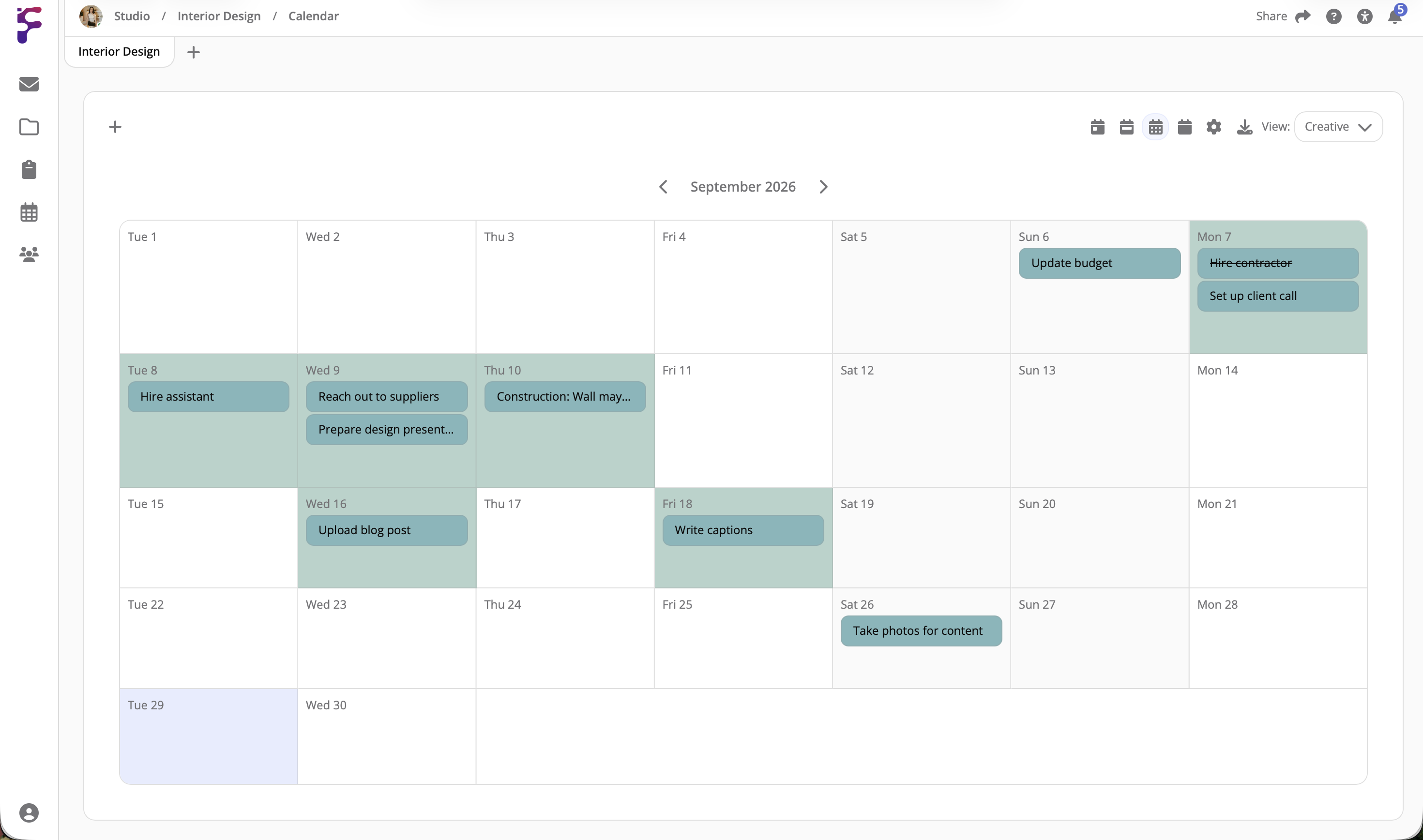
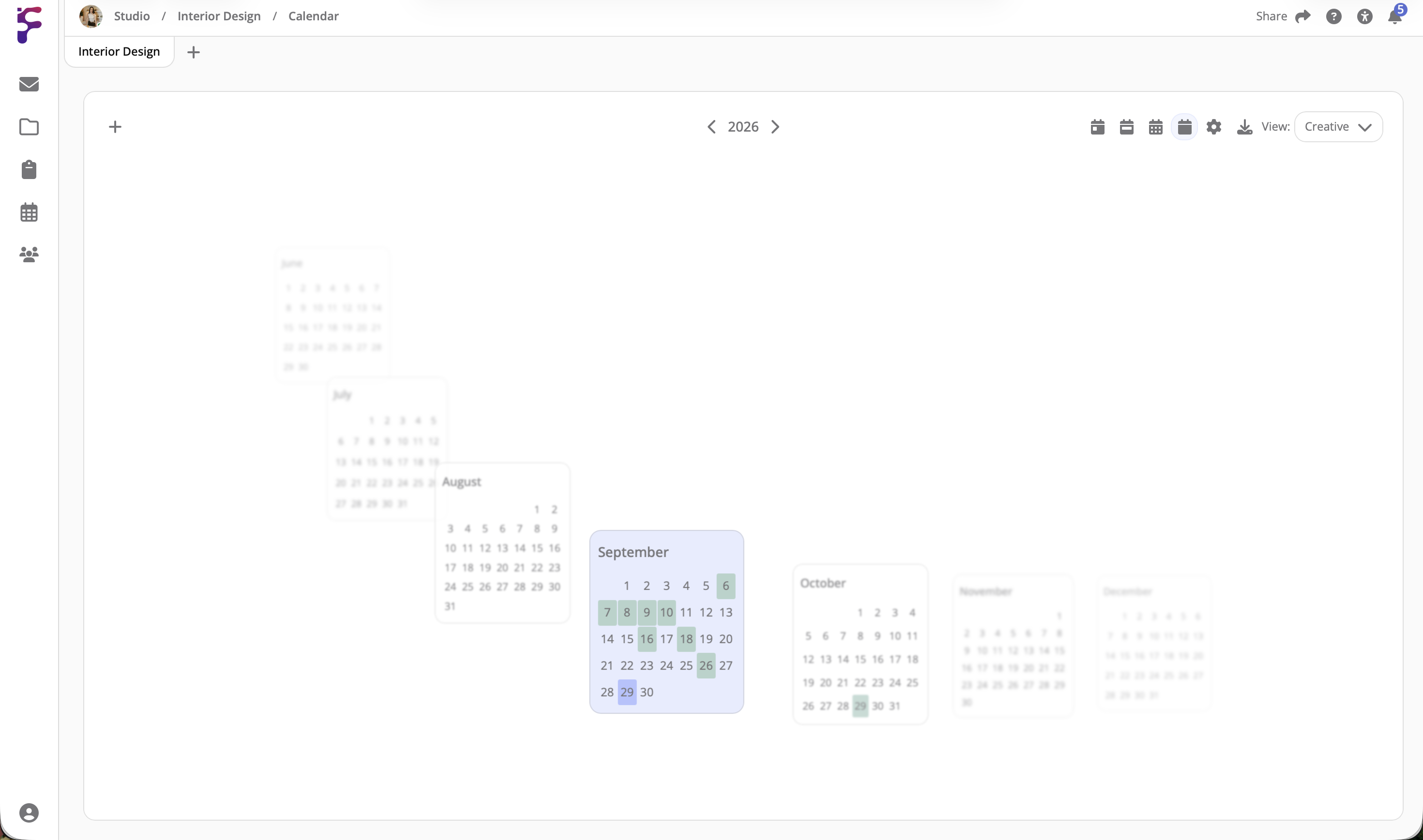
- Creative (R): Set up the calendar the way you see it in your mind, made for people with calendar synaesthesia. It has daily, weekly, monthly and yearly views of its own, in shapes like squares, circles, ovals, lines, carousels, rolodexes, columns and curves, or your own layout
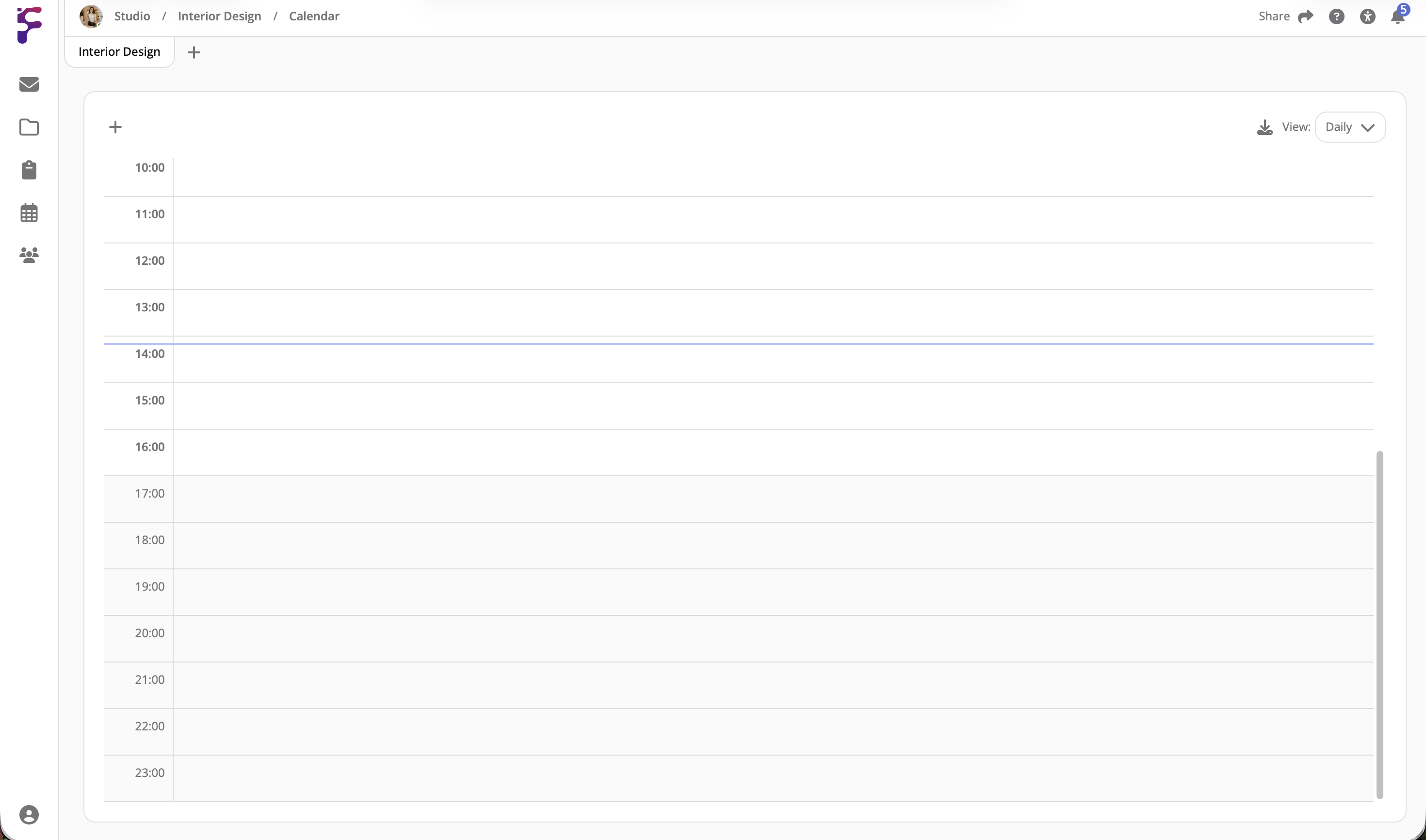
- Daily (D): One day, hour by hour
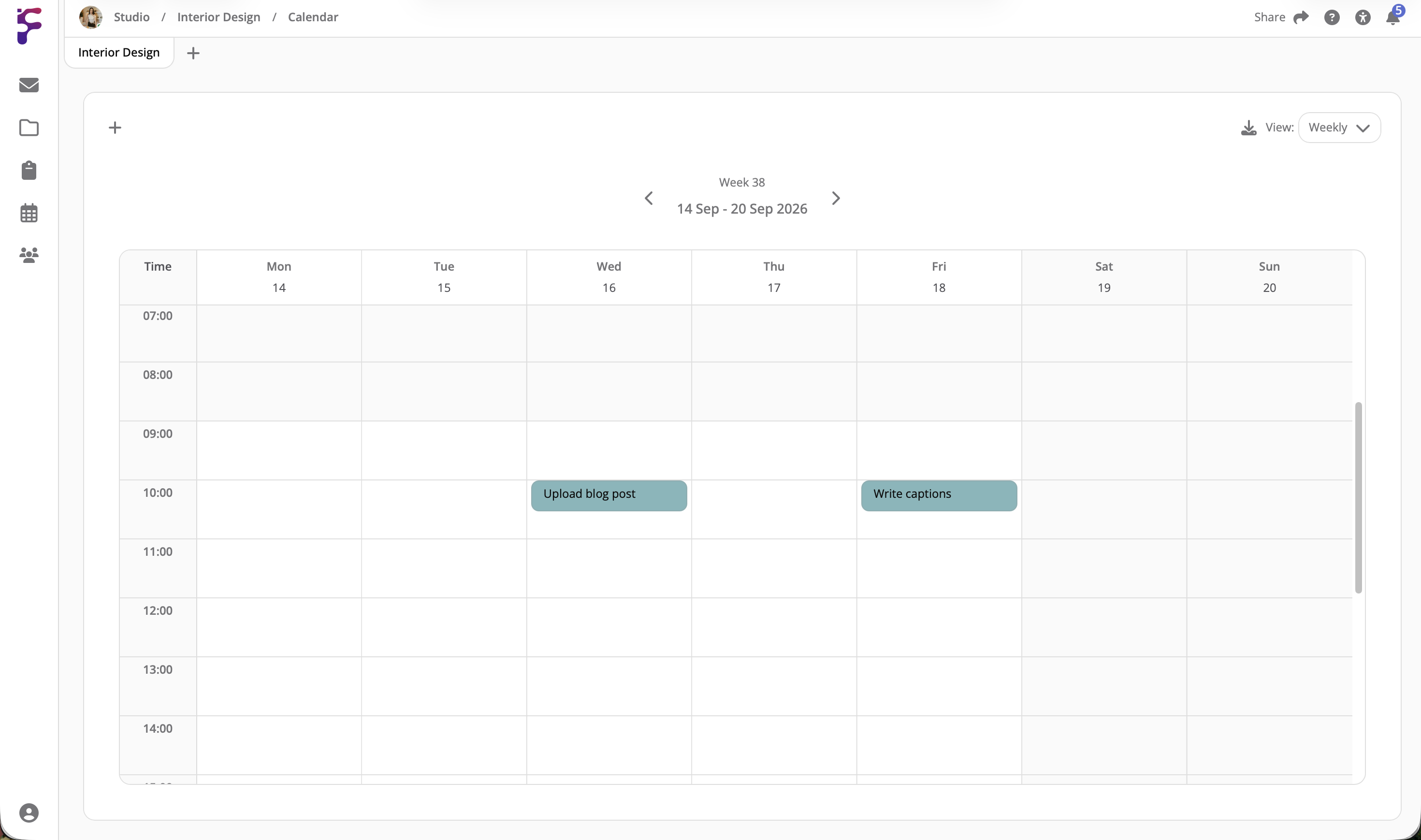
- Weekly (W): One week
- Yearly (Y): The whole year on one page
Timeline
Content Calendar
Daily
Weekly
The Creative View
In the Creative view, press ← and → to go to the previous or next period, T to go to today, D, W, M and Y to switch between its daily, weekly, monthly and yearly layouts, and S to open the settings.
Adding Events, Tasks And Meetings
Click a day or a time in any view to add an event, a task or a meeting there. In the Content Calendar view, you add a task. A new item goes on the calendar of the tab you're on. To put it on another calendar, select it under Add to calendar.
Click an item to open and change it. In most views, you can also drag an item to another day or time. See Events, Tasks and Meetings.
| Action | Shortcut |
|---|---|
| New event | N or ⌥ / Alt + E |
| New task | ⌥ / Alt + T |
| New meeting | ⌥ / Alt + M |