Importing And Syncing Your Calendar
Keep Formta and the calendar you already use in step, so your project dates are in both. Connect Google Calendar to sync both ways, or bring in and export calendar files.
Connecting Google Calendar
Connect Google Calendar once, and you can sync it with any of your Formta calendars.
- Open the Calendar page
- Open any calendar's tab, hover + at the top left and select Connect Google Calendar, then select the dates to bring Google events in from and click Sync
- Sign in to Google and allow Formta to access your calendars
- Google sends you back to Formta, and your calendar is connected
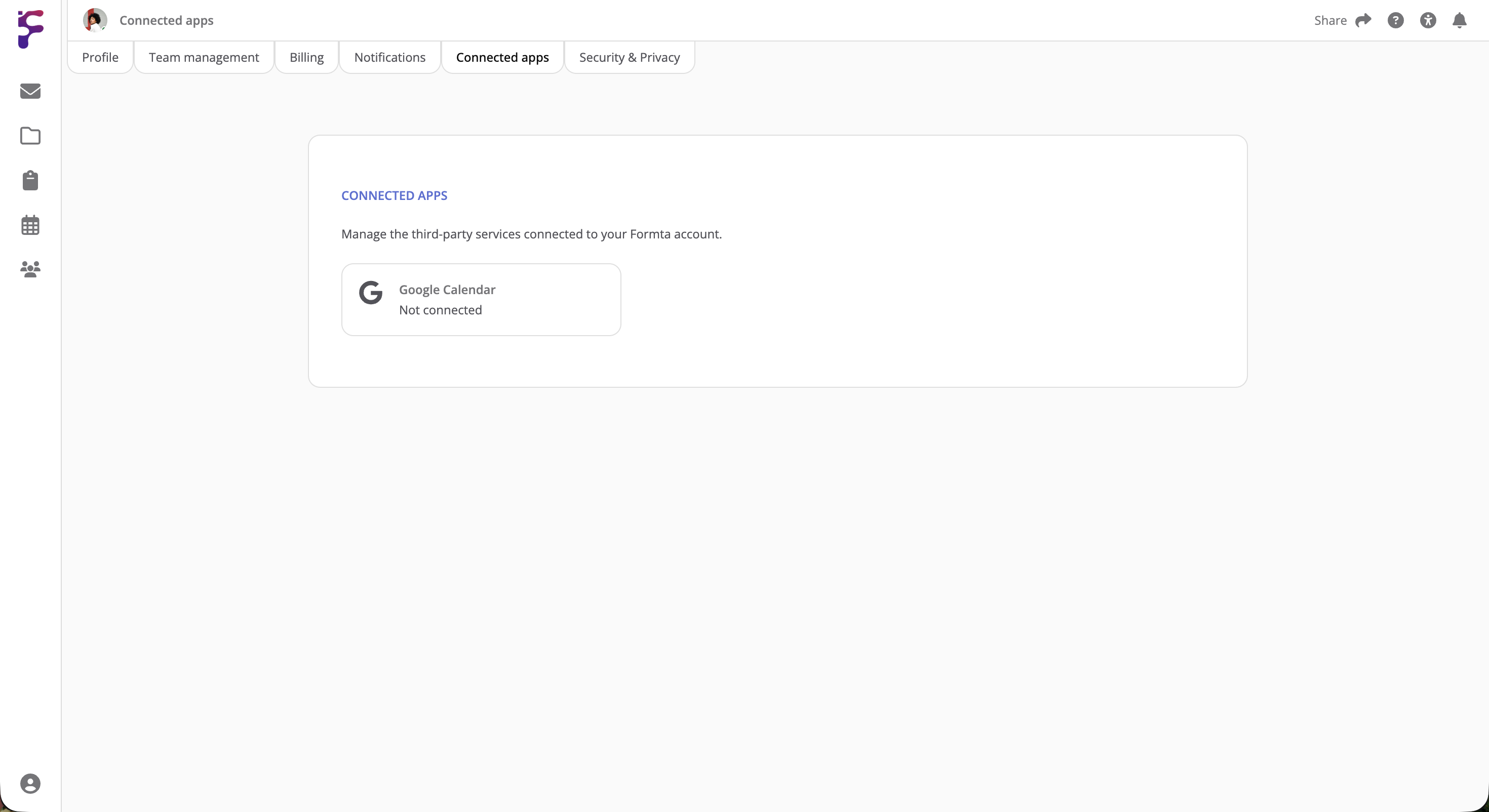
You can also connect it in Account → Connected apps.
Syncing With Google Calendar
Open the tab of the calendar you want your Google events in, hover + and select Sync Google Calendar. It works on your personal calendars as well as team and project ones. Select the dates under From and To (they start at 30 days ago and 12 months from now), then click Sync:
- From Formta to Google: Your events, tasks and meetings are added to Google Calendar
- From Google to Formta: The events in your Google calendars between those dates are added as events to the calendar you have open, with their title, time, location and description. A full-day event stays a full-day event. Syncing again never adds the same event twice
On a personal calendar, only you and the people you've shared it with see the events from Google.
You need to be online to sync your calendar.
Import A Calendar File When You Create A Project
If your dates are in another calendar app, bring them in as a file when you create a project:
- On the Projects page, click New Project, or press N
- Add the project's details, click Next, select I'm moving from another tool and click Next
- Add your .ics file to the project. Task and kanban exports work too, like CSV, Excel and Trello files
- Click Create project
- Click Go to Project, or Show Me How Formta Works for a guided tour
A file is imported once and doesn't stay in sync. To keep both calendars in step, connect Google Calendar. See Creating Your First Project. You can also import an ICS file into a Content Calendar or a Meeting List on a project page.
Export Your Calendar As An ICS File
To take your dates to another calendar app, click the download icon at the top right of the Calendar page. An ICS file with your events, tasks and meetings downloads, with today's date in its name, and any calendar app that reads ICS files can open it.
Disconnecting Google Calendar
In Account → Connected apps, click Disconnect. Events you've already synced stay in Formta, and you can connect it again any time.