Client Revisions
Get your client's feedback round by round, and keep every round. A client revision is a page you've sent to a client, kept exactly as it looked when you sent it, so you both know what was reviewed. Sending the same page again creates a new round, like "Moodboard (v2)".
Your client gets an email with a link, and creates a free Formta account, or signs in, to see the page. There are no files to export and no long emails to write.
You and your client both see a project's client revisions on its client revisions page. To open it, click the icon in the Open column on the project's row in the Client Revisions table on the Projects page. Your client finds it in My Client Projects on their Projects page. You can also follow them on a project page with a Client Revisions List.
While your subscription is paused or a payment hasn't gone through, your clients can't open what you've sent them. Everything opens again for them as soon as your subscription is running again.
Sending A Project Page
Send your client the page they should review, with a due date and a message, so they know what you need from them.
- Open the page you want to send
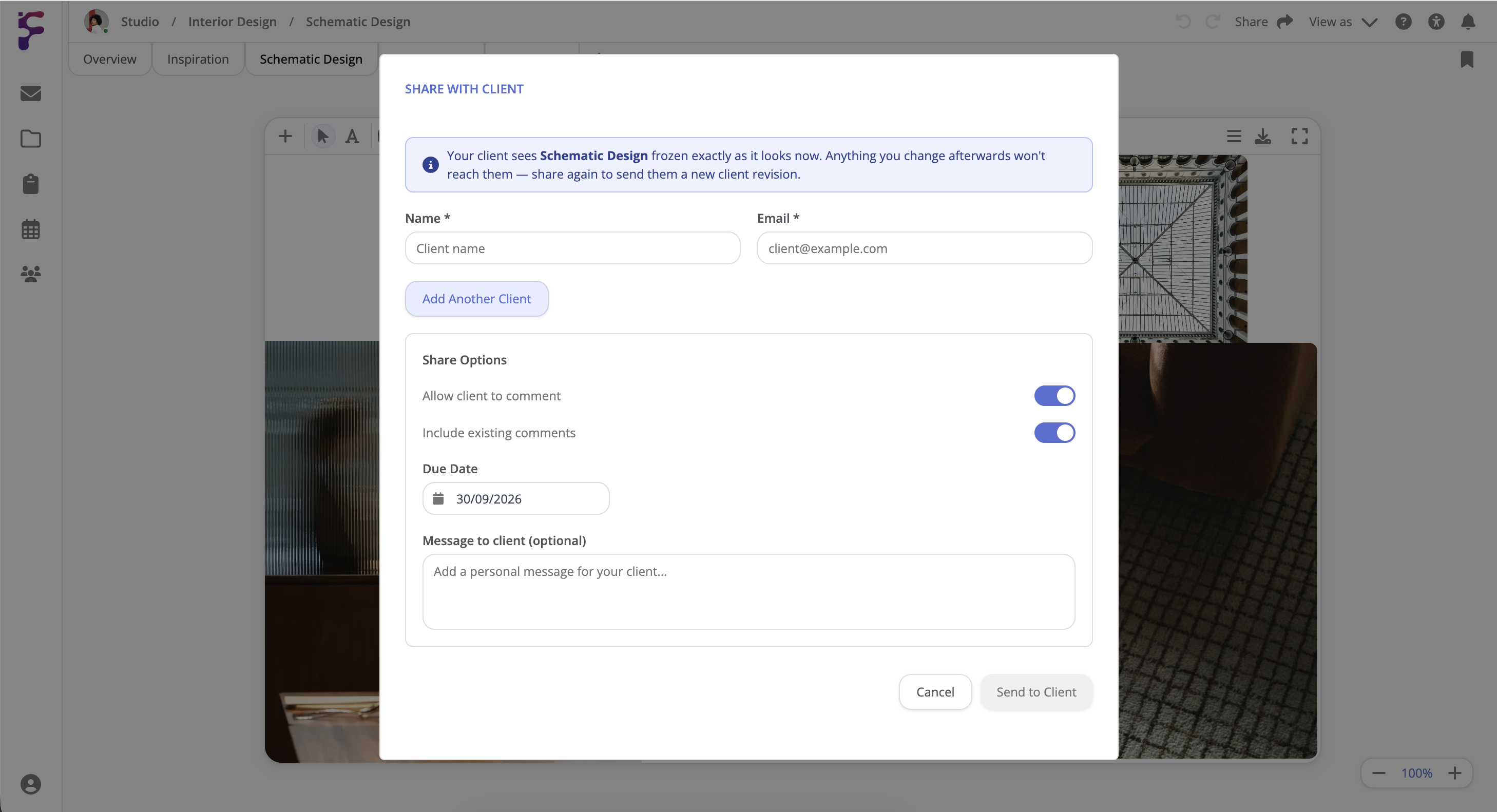
- Hover Share in the header and select Send to client
- Select a client, or click +, enter the Name and Email of a new one, and click Add Another Client
- Select what the client can do, and add a Due Date and a Message to client
- Click Send to Client
Your client sees the page exactly as it looks now. Anything you change afterwards doesn't reach them, so send it again when you want them to see the next round.
What Your Client Can Do
Your client can see the pages you've sent them, comment on them, and approve the elements and items on them, but never change your project. For each page you send, you select:
- Can reply: A switch next to each client, for whether they can reply in the conversations on every page you've sent them. It saves as soon as you switch it
- Include existing comments: Whether they see the comments already on the page
- Allow client to download images: On a page with a Photo Selection, whether they can download the photos
The Client Revisions Page
The page has a tab for each part of the project your client sees:
- Project overview: The project's status and payments, if the project has a Project Status Chart and a Payment Status Chart, and Our team working on your project, with each person's title, email, phone and work preferences
- Calendar: What's coming up in the calendars you've shared with your clients. Select which ones under Shared with clients
- Inventory: The items in the inventories you've shared with your clients. Select which ones under Shared with clients
- A tab for each client revision: The page as you sent it
Your client only sees the Calendar and Inventory tabs when you've shared something in them.
How A Round Of Client Revisions Works
1. You Send A Page
Send the page with a due date and a message, as in Sending A Project Page.
2. Your Client Reviews It
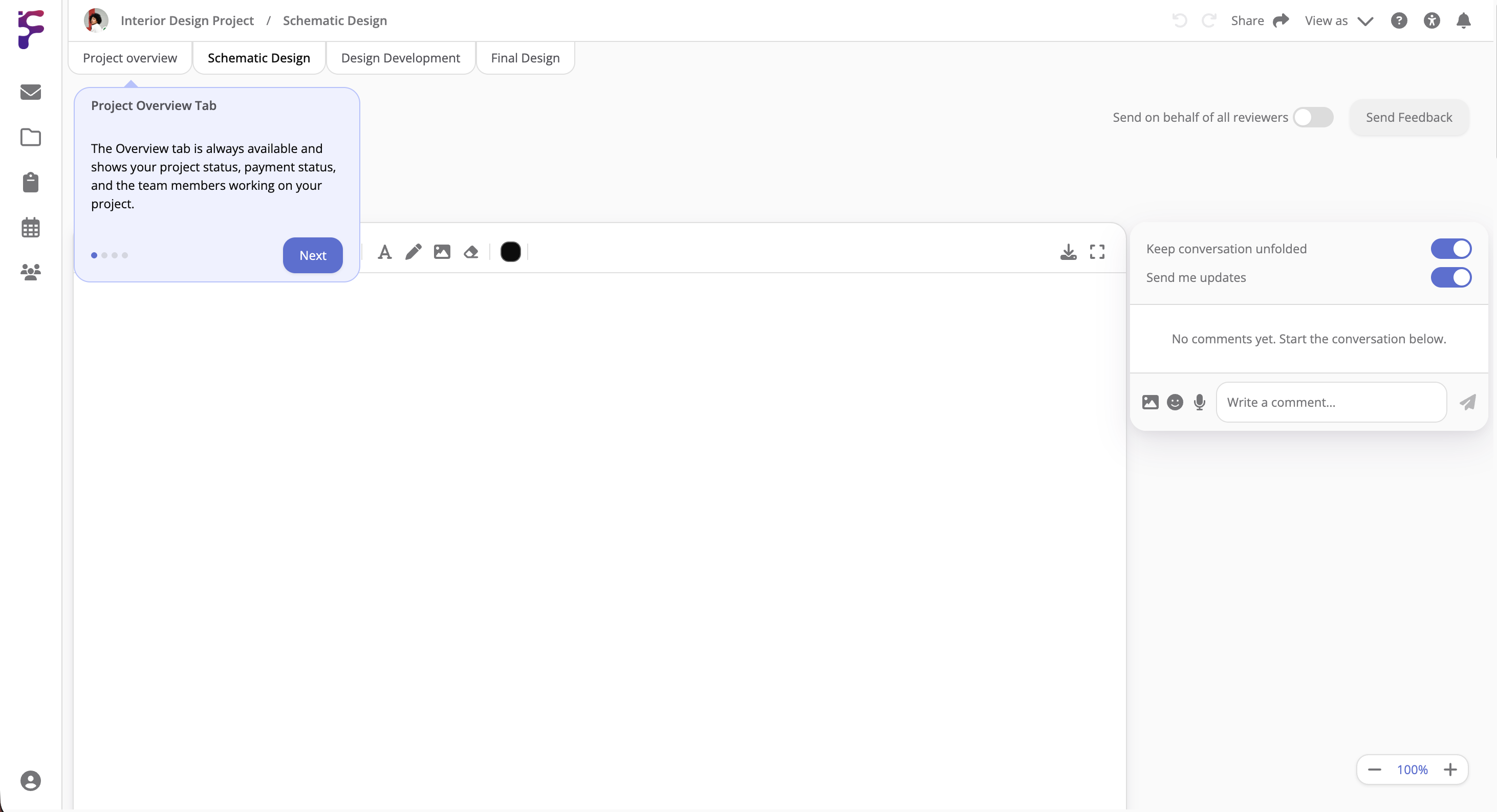
In the client revision's tab, your client comments, approves the elements they're happy with, like a moodboard or the photos in a Photo Selection, and clicks Send Feedback when they're done. When more than one client reviews the same page, one of them can turn on Send on behalf of all reviewers to answer for everyone.
Once they've sent their feedback, the tab shows Feedback sent. If the due date has passed first, the tab says the review is overdue.
3. You Go Through The Feedback
The elements your client has commented on or changed are highlighted, and you get a notification. A chip at the top right, like 3 client updates, shows how many you haven't seen. Click it and select Next Update to go to the next one, or Mark All as Seen.
4. You Send The Next Round
Make your changes, and send the page again. It becomes a new round in its own tab.
Tabs
When there are more tabs than fit, use the arrows or the list at the end of the tabs. To delete a revision that hasn't been sent yet, click the X on its tab.
Adding And Removing A Project's Clients
Your projects with clients are in the Client Revisions table on the Projects page. To change who the clients on a project are:
- Click + next to the client's company
- In Edit clients for, click Add client and enter their name and email, or click the bin icon to remove a client
- Click Continue. New clients get an invitation
Removing a client ends their access to the project's client revisions and takes them off upcoming meetings. Their feedback stays. You can't undo it.
Watermarks On Photos
When the page has a Photo Selection, the photos your client sees have a watermark, so they can't be used before you've delivered them. On Free, Personal and Studio, the watermark says "Sent via Formta", and you can add your own text before it in Custom Watermark, like "Your Name - Sent via Formta". On Pro, the watermark is only your own text. The high-resolution photos you deliver never have a watermark.
Delivering High-Resolution Photos
When your client has approved photos, send them the full-resolution files from the paper plane icon on the Photo Selection, or from the Deliver column on the Projects page. The download link is valid for 7 days. See High-Res Delivery.
Tips
- Agree with your client on how many rounds of revisions you'll do at the start. You can see how many are left for each project on the Projects page
- If more than one person at your client needs to approve the work, add each of them as a client, so every one of them approves on their own
- Write a short message with each page you send, so your client knows what you'd like from them
- Only allow downloads when your client needs them